Resources & FAQ
Resources
- Link to Curriculog nmu.curriculog.com
- Request a course number from the Office of the Registrar: Course Number Request
- Need additional help? Email curriculumhelp@nmu.edu
Proposer: Help / How to
- Course Proposals (New, Change, Delete)
- Program Proposals (New Part 1, New Part 2, Change, Delete)
- New Subject Prefix or Course Type
- Program Style Guide (How to design your program to match our Catalog style)
Approver: Help / How to
- Reviewing and Approving or Rejecting
- Building an Agenda
- Reviewing an Agenda
Frequently Asked Questions (jump to FAQ section)
Proposal names, file types, and filter
| UG and Grad | Proposal Name | Filter Column |
|---|---|---|
| New Subject or Prefix Type | All Groups - New Subject Prefix or Course Type (2027-28) | Other |
| Undergraduate | Proposal Name | Filter Column |
| CUP Course Change | CUP Course: Change (2027-28) | Course |
| CUP Course Delete | CUP Course: Delete (2027-28) | Course |
| CUP New Course | CUP Course: New (2027-28) | Course |
| CUP Program Change | CUP Program: Change (2027-28) | Program |
| CUP Delete Program | CUP Program: Delete (2027-28) | Program |
| CUP New Program Part 1 | CUP Program: New - Part 1 (2027-28) | Other |
| CUP New Program Part 2 | CUP Program: New - Part 2 (2027-28) | Program |
| CTOS Course Change | CTOS Course: Change (2027-28) | Course |
| CTOS Course Delete | CTOS Course: Delete (2027-28) | Course |
| CTOS New Course | CTOS Course: New (2027-28) | Course |
| CTOS Program Change | CTOS Program: Change (2027-28) | Program |
| CTOS Delete Program | CTOS Program: Delete (2027-28) | Program |
| CTOS New Program | CTOS Program: New (2027-28) | Program |
| Graduate | Proposal Name | Filter Column |
| GPC Intent to Propose | GPC Program: Intent to Propose (2027-28) | Other |
| GPC Course Change | GPC Course: Change (2027-28) | Course |
| GPC Course Delete | GPC Course: Delete (2027-28) | Course |
| GPC New Course | GPC Course: New (2027-28) | Course |
| GPC Program Change | GPC Program: Change (2027-28) | Program |
| GPC Delete Program | GPC Program: Delete (2027-28) | Program |
| GPC New Program Part 1 | GPC Program: New - Part 1 (2027-28) | Other |
| GPC New Program Part 2 | GPC Program: New - Part 2 (2027-28) | Program |
News & Updates
Need some help with Curriculog? Please email Josh at jsantiag@nmu.edu if you have any questions or would like some training.
FAQ
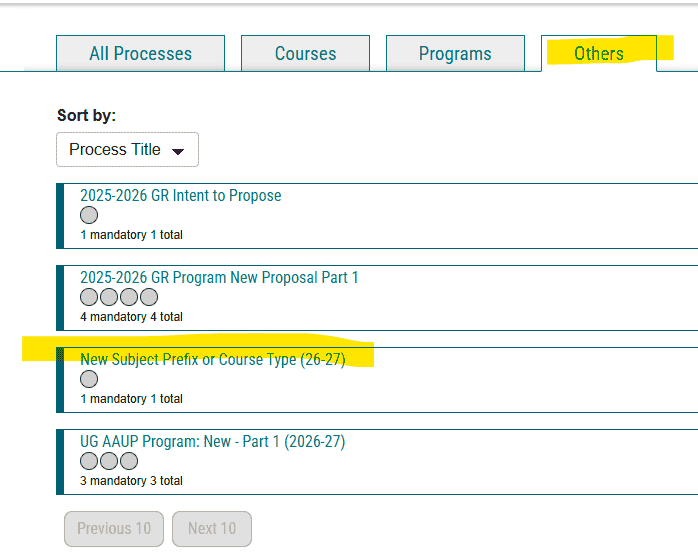
Use the form "New Subject Prefix or Course Type". If you are using the filter, it is found in the "Other" category.
When requesting a new subject prefix or subject code please consider the following. Creating a new academic prefix or subject code should be an exceptional occurrence. The subject code, paired with the course number, forms the permanent identity of a course. Changing the subject severs that historical connection, making it harder to track a student’s academic progress and potentially creating confusion in transcripts, degree audits, prerequisite enforcement, and transfer evaluations.
Institutions are built to last, and the supply of usable subject code combinations is finite. Each new prefix consumes a portion of that limited resource and must be maintained and supported indefinitely. We must be strategic and conservative in how we assign them.
As a rule, we only recommend creating a new subject code when launching a completely new program with no natural alignment to an existing prefix, or when a program has fully exhausted its available course numbers under an existing code. Otherwise, restructuring or renaming within an existing prefix should be the default path.
Submitted proposals have moved to the next step in the workflow. Hover your mouse over the circle icons to view the status:
Green thumbs up indicate the proposal has passed and moved forward
Red thumbs down indicate it was returned to the previous step
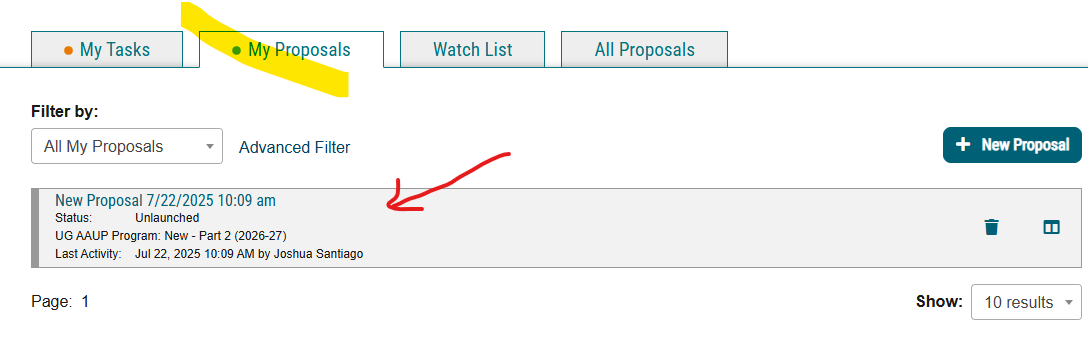
You can always review your proposals under the "My Proposals" category. From there you can review any comments from any of the approvers in the process.
If it is not your proposal you can "flag" the proposal, which will add it to your watch list. You can click the watchlist tab to view any of the proposals you have flagged.
Yes, proposals are viewable to all users with a login.
To view proposals, click the "All Proposals" tab on your main screen. Since this list can be extensive, we recommend using the Filter and Advanced Filter options to narrow your search.
Once you find a submission, you can click the flag icon to follow its progress. It will then appear under your "Watch List" tab on the main screen.
When you create a proposal, it will save. After you fill in any information, you will need to manually save your progress. To do so, click "Save All Changes" found at the bottom of your screen (the button should follow you as you scroll).

To return to a saved proposal, click on the "My Proposal". Saved but unsubmitted proposals will be greyed-out. To edit that proposal, click on the greyed-out proposal.
This is typically due to two issues
Zero Information?
This usually happens because of a course name change. The impact report pulls from the course name. If you changed the name before running the report, it is using the new name, which likely has no matches yet because nothing is linked to it.Outdated Information?
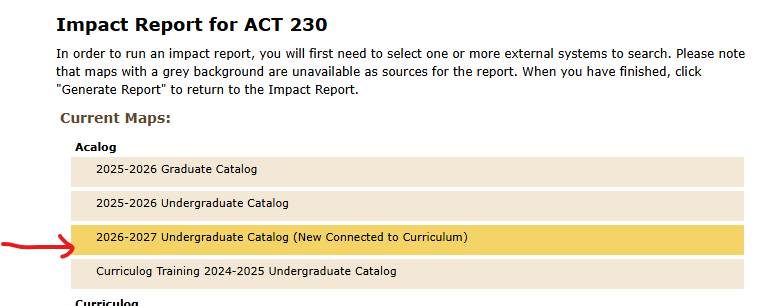
This is usually caused by selecting the wrong Catalog for the impact report. The impact report must be run against the Catalog tied to Curriculog/Curriculum, which is the upcoming academic year's catalog. Make sure you select that version when generating the report.